> ## Documentation Index
> Fetch the complete documentation index at: https://docs.cfosilvia.com/llms.txt
> Use this file to discover all available pages before exploring further.
# Import Holdings from a CSV
> Bring your stocks and ETFs in from a brokerage statement, file them into the right account, and keep prices current automatically.
If your brokerage can't be connected, you can still track every position by importing a CSV export of your holdings. Silvia reads the file, lets you review each row, and files the holdings into the account they belong to. From then on, prices update automatically.
 ## Before you start
* **Export your holdings as a CSV** from your brokerage's website. Look for a "Positions", "Holdings" or "Portfolio" download. Spreadsheet files such as `.xlsx` need to be saved as `.csv` first.
* **One file per account.** Each import goes into one account. If your statement covers several accounts, split it into one file per account.
* **Columns that work best:** Ticker (or Symbol), Quantity (or Shares) and Cost Basis. Other columns are fine. Silvia works out which column is which.
* Files can be up to 10 MB.
## Import your holdings
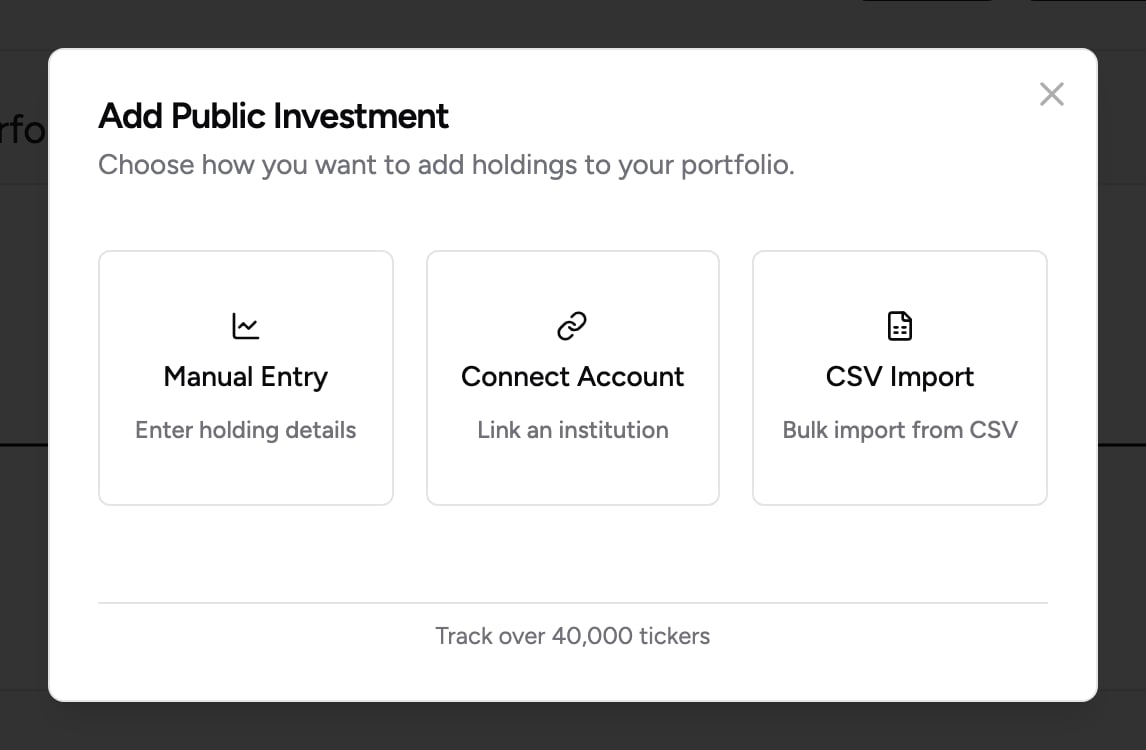
Go to **Assets & Liabilities**, open **Public Investments**, click **Add investment**, then choose **CSV Import**.
## Before you start
* **Export your holdings as a CSV** from your brokerage's website. Look for a "Positions", "Holdings" or "Portfolio" download. Spreadsheet files such as `.xlsx` need to be saved as `.csv` first.
* **One file per account.** Each import goes into one account. If your statement covers several accounts, split it into one file per account.
* **Columns that work best:** Ticker (or Symbol), Quantity (or Shares) and Cost Basis. Other columns are fine. Silvia works out which column is which.
* Files can be up to 10 MB.
## Import your holdings
Go to **Assets & Liabilities**, open **Public Investments**, click **Add investment**, then choose **CSV Import**.
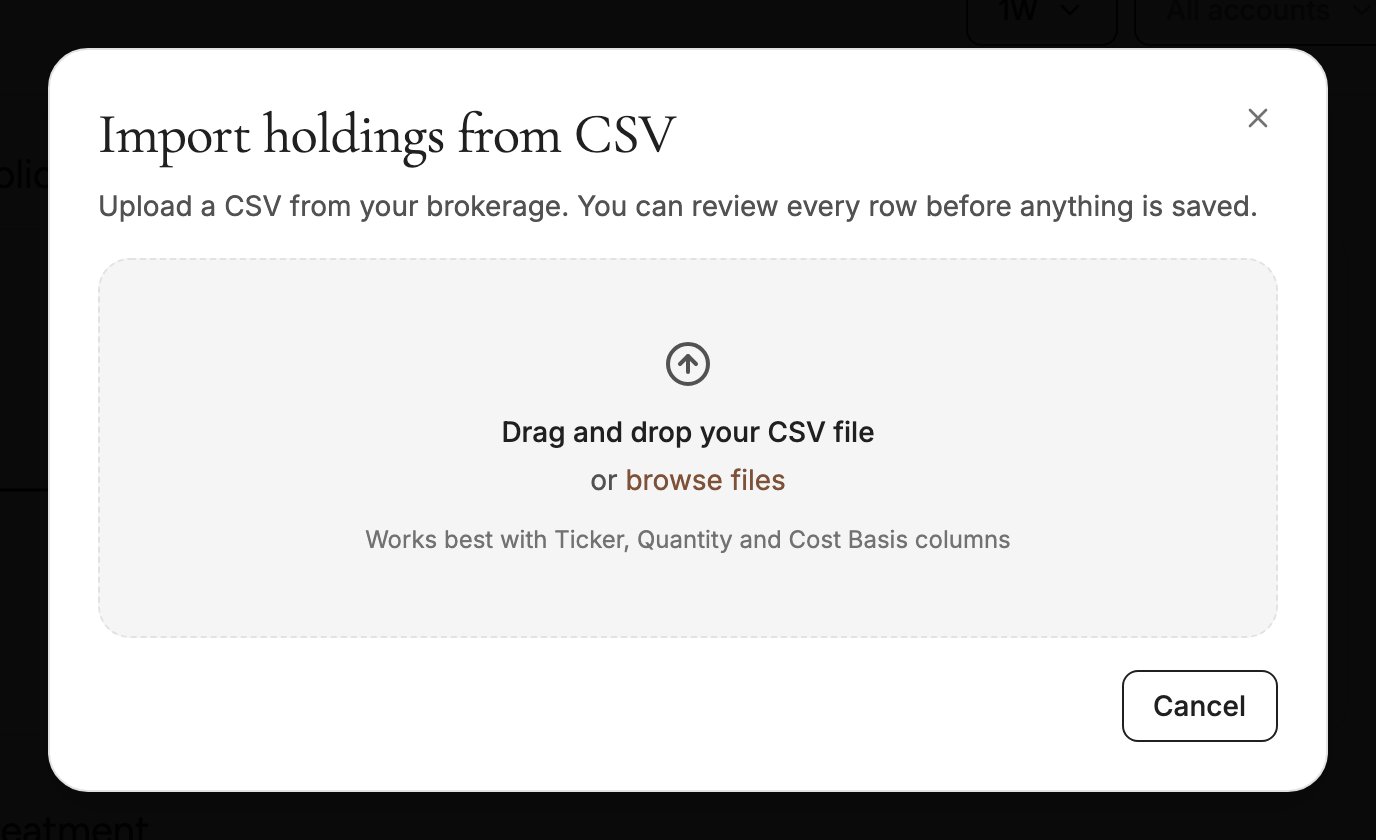
 Drag your CSV into the box, or click **browse files** to pick it. Silvia reads the file and lists every holding it found. Nothing is saved yet.
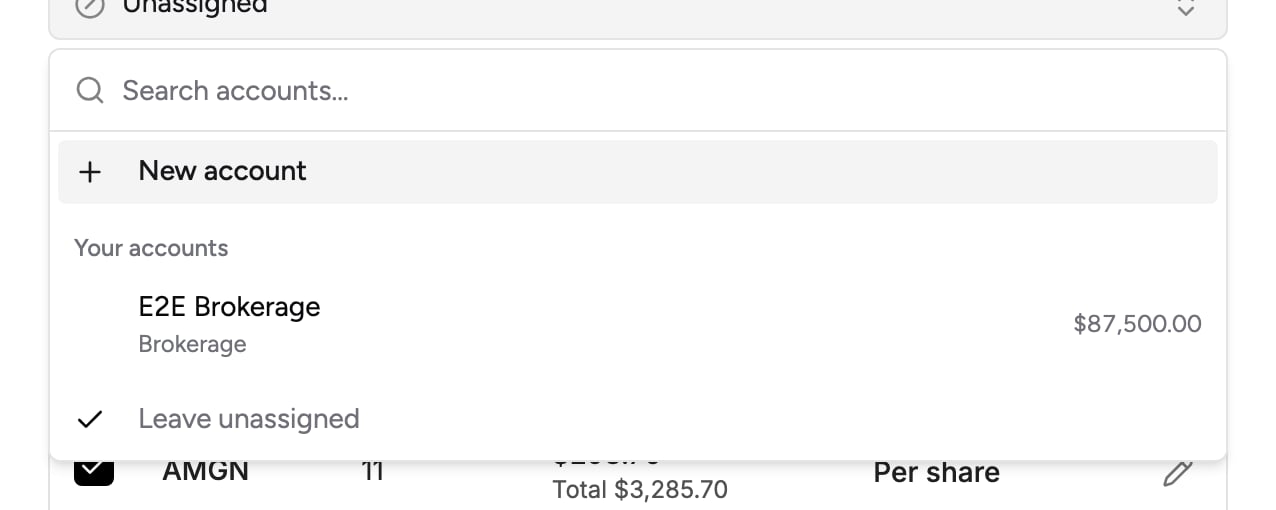
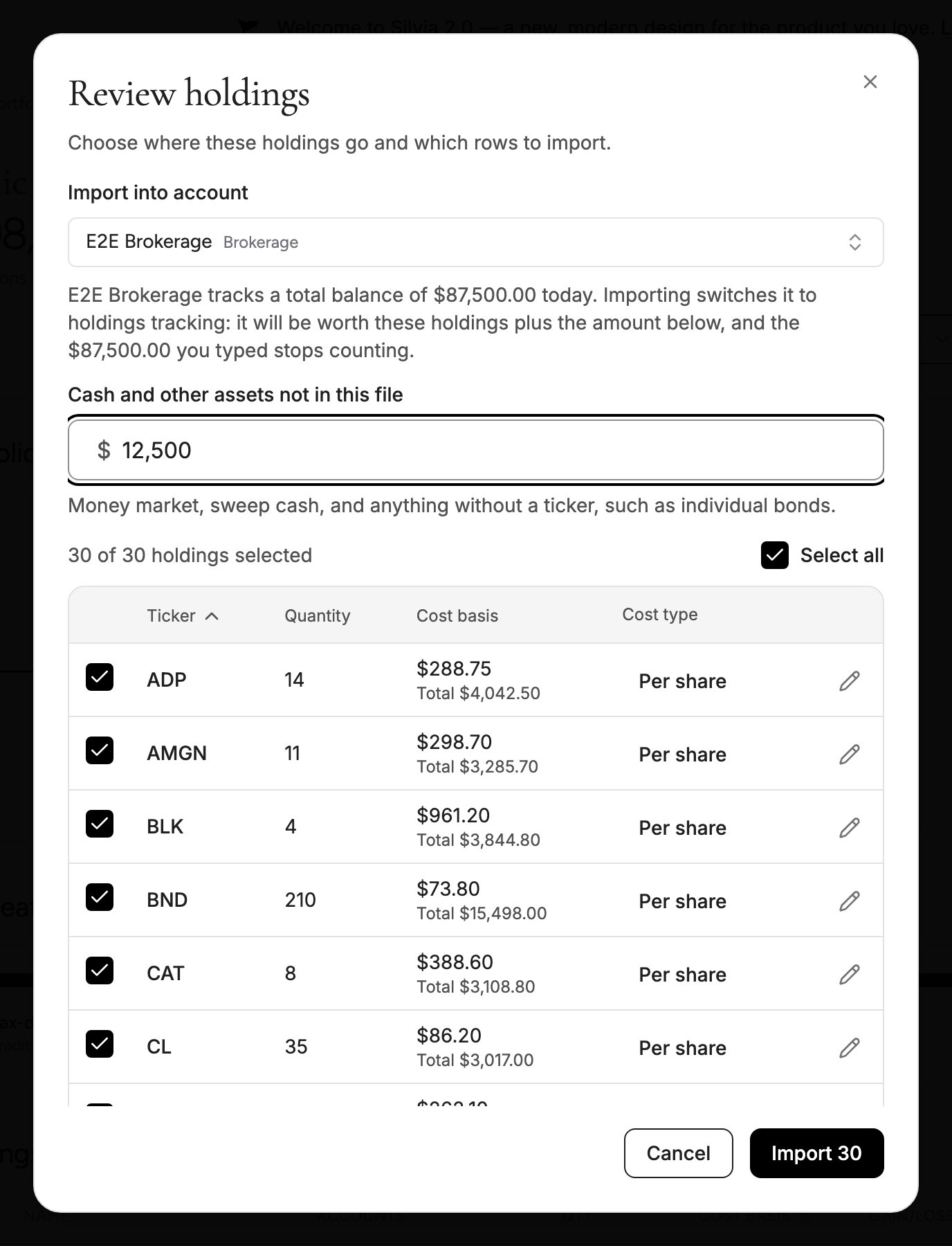
Under **Import into account**, pick the account these holdings belong to, or create a new one from the same menu. See [Why the account matters](#why-the-account-matters) below.
Drag your CSV into the box, or click **browse files** to pick it. Silvia reads the file and lists every holding it found. Nothing is saved yet.
Under **Import into account**, pick the account these holdings belong to, or create a new one from the same menu. See [Why the account matters](#why-the-account-matters) below.
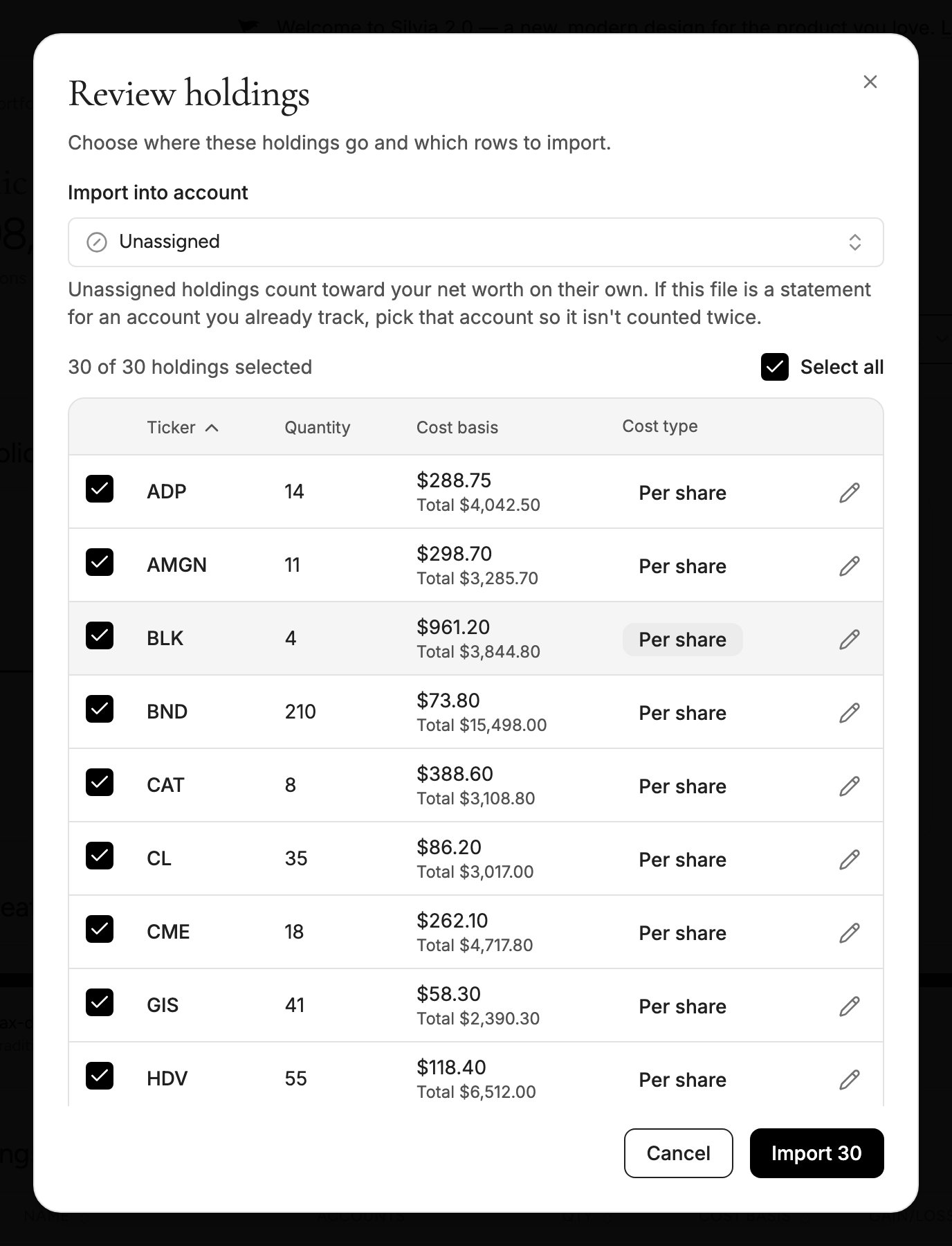
 Check each row. Untick anything you don't want to import, or click the pencil to fix a ticker, quantity or cost basis. **Cost type** says whether a cost is **Per share** or the **Total cost** of the position. Click it to switch.
Click **Import**. The button shows how many holdings will be added. Large files can take a minute. When it finishes, the holdings appear in the account and in Public Investments.
Check each row. Untick anything you don't want to import, or click the pencil to fix a ticker, quantity or cost basis. **Cost type** says whether a cost is **Per share** or the **Total cost** of the position. Click it to switch.
Click **Import**. The button shows how many holdings will be added. Large files can take a minute. When it finishes, the holdings appear in the account and in Public Investments.
 ## Why the account matters
If you already track this account in Silvia as a single balance, **pick that account** when you import. Leaving the holdings **Unassigned** counts them on their own, on top of the balance you typed, so the same money would be counted twice in your net worth.
When you import into an account that tracks a typed balance, Silvia switches it to track its holdings instead. The account's value becomes the imported holdings plus the amount in **Cash and other assets not in this file**, and the balance you typed stops counting.
**Cash and other assets not in this file** starts at zero on purpose. Enter your statement's cash or money market balance there, plus anything the file can't include, such as individual bonds without a ticker. Don't enter the account's total value, or it will be counted twice.
## Why the account matters
If you already track this account in Silvia as a single balance, **pick that account** when you import. Leaving the holdings **Unassigned** counts them on their own, on top of the balance you typed, so the same money would be counted twice in your net worth.
When you import into an account that tracks a typed balance, Silvia switches it to track its holdings instead. The account's value becomes the imported holdings plus the amount in **Cash and other assets not in this file**, and the balance you typed stops counting.
**Cash and other assets not in this file** starts at zero on purpose. Enter your statement's cash or money market balance there, plus anything the file can't include, such as individual bonds without a ticker. Don't enter the account's total value, or it will be counted twice.
 ## Updating with a newer statement
When you import a new statement for an account that already has holdings, tick **Replace the holdings already in this account**. The new positions replace the old ones instead of being added on top.
If any row fails to import, Silvia keeps your old holdings instead of replacing them, and the message at the end tells you so. The rows that did import are still added, so for now the account holds positions from both statements and its value won't match the newer one. Fix the rows that failed, then import the file again with **Replace** ticked. You don't need to delete anything first, because a clean import replaces everything in the account.
## What stays up to date
**Prices.** Every imported stock and ETF is priced from market data, about every 15 minutes during US market hours and at each close. The account's value moves with the market on its own.
**Share counts and cash.** Silvia can't see trades at a brokerage that isn't connected. After you buy, sell or reinvest dividends, import a newer statement with **Replace** ticked, or edit the holding.
Bonds and other positions you added through the cash amount are not repriced either. Update that amount by editing the account.
## Troubleshooting
Silvia supports most US-listed stocks and ETFs. Mutual funds, foreign securities and some other asset types aren't supported yet. The rest of the file still imports. Check that each ticker trades on a US exchange, fix it in the review step, and import again.
The import accepts `.csv` files up to 10 MB. Export or save your statement as CSV and try again.
The holdings were probably imported as Unassigned while the account still has a typed balance. Delete the unassigned copies from Public Investments, then import the file again and pick that account under **Import into account**.
The cost type is probably wrong for that row. A per-share price saved as a total makes gains look huge. Open the holding, check whether the cost is **Per share** or **Total cost**, and correct it.
If an import stops making progress, Silvia ends it after a few minutes and tells you. Some holdings may already have been added, so check Public Investments before trying again.
## Related
* [Public Investments](/product-guide/assets/public-investments)
* [Assets and Liabilities](/product-guide/portfolio/assets-liabilities)
This documentation is built and hosted on [Mintlify](https://mintlify.com), a developer documentation platform.
## Updating with a newer statement
When you import a new statement for an account that already has holdings, tick **Replace the holdings already in this account**. The new positions replace the old ones instead of being added on top.
If any row fails to import, Silvia keeps your old holdings instead of replacing them, and the message at the end tells you so. The rows that did import are still added, so for now the account holds positions from both statements and its value won't match the newer one. Fix the rows that failed, then import the file again with **Replace** ticked. You don't need to delete anything first, because a clean import replaces everything in the account.
## What stays up to date
**Prices.** Every imported stock and ETF is priced from market data, about every 15 minutes during US market hours and at each close. The account's value moves with the market on its own.
**Share counts and cash.** Silvia can't see trades at a brokerage that isn't connected. After you buy, sell or reinvest dividends, import a newer statement with **Replace** ticked, or edit the holding.
Bonds and other positions you added through the cash amount are not repriced either. Update that amount by editing the account.
## Troubleshooting
Silvia supports most US-listed stocks and ETFs. Mutual funds, foreign securities and some other asset types aren't supported yet. The rest of the file still imports. Check that each ticker trades on a US exchange, fix it in the review step, and import again.
The import accepts `.csv` files up to 10 MB. Export or save your statement as CSV and try again.
The holdings were probably imported as Unassigned while the account still has a typed balance. Delete the unassigned copies from Public Investments, then import the file again and pick that account under **Import into account**.
The cost type is probably wrong for that row. A per-share price saved as a total makes gains look huge. Open the holding, check whether the cost is **Per share** or **Total cost**, and correct it.
If an import stops making progress, Silvia ends it after a few minutes and tells you. Some holdings may already have been added, so check Public Investments before trying again.
## Related
* [Public Investments](/product-guide/assets/public-investments)
* [Assets and Liabilities](/product-guide/portfolio/assets-liabilities)
This documentation is built and hosted on [Mintlify](https://mintlify.com), a developer documentation platform.