> ## Documentation Index
> Fetch the complete documentation index at: https://docs.cfosilvia.com/llms.txt
> Use this file to discover all available pages before exploring further.
# Subscription & billing
> Manage your Silvia plan, usage, and billing.
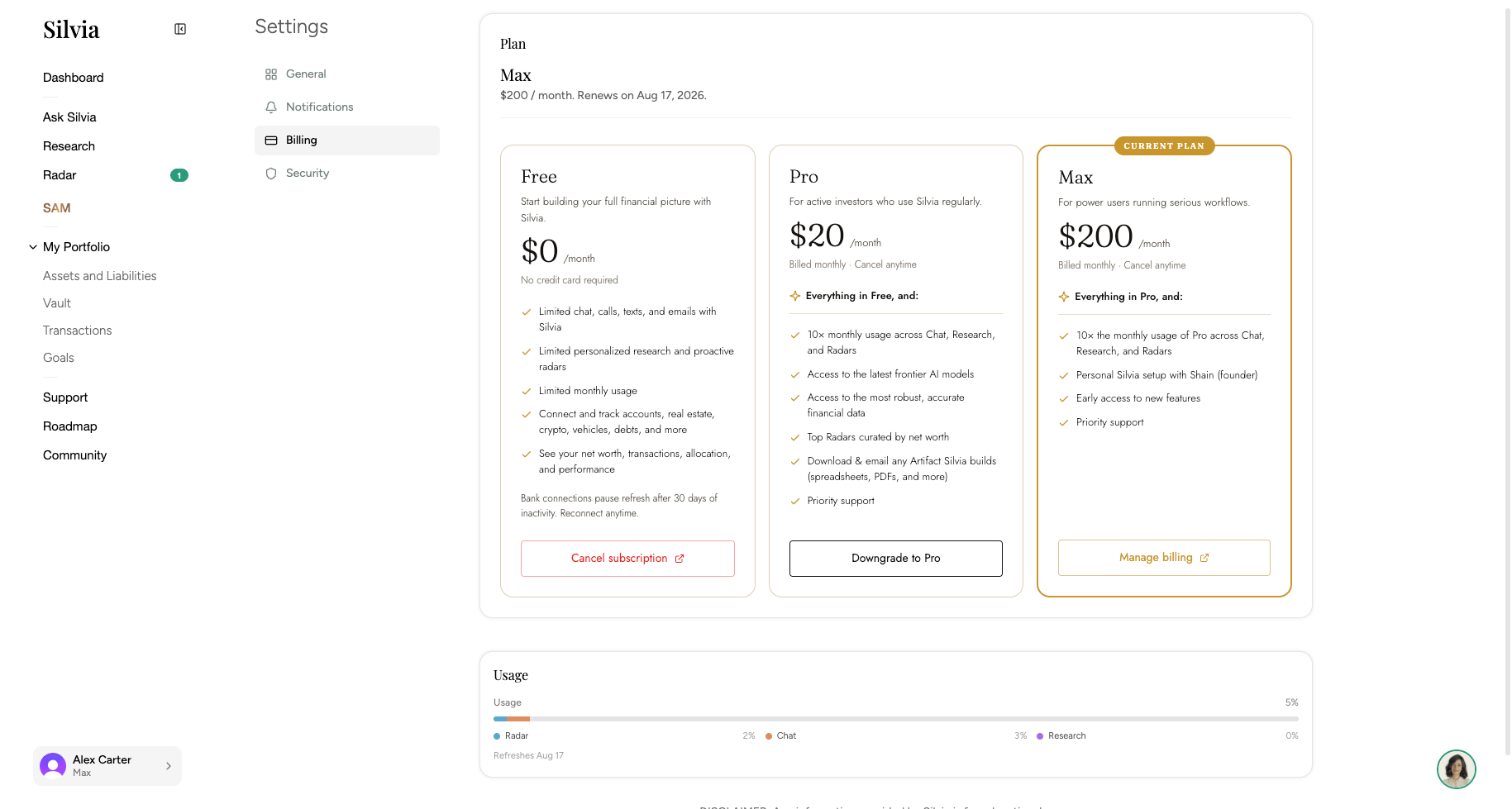
Your Silvia plan, usage, and billing all live in **Settings → Subscription**.
 ## Plans
Silvia has three tiers:
Get started with core net worth tracking and limited AI usage.
Higher AI limits across Ask Silvia, Research, and Radar.
The highest AI limits and full access to every feature.
## What you see on the page
* **Current plan**: Your tier, price, and next renewal or cancel date.
* **Tier picker**: Compare Free, Pro, and Max side by side. Each tier shows a context-aware button: **Current**, **Upgrade**, **Downgrade**, or **Cancel**.
* **Usage**: Per-feature usage bars for Radar, Ask Silvia (chat), and Research, plus the date your usage refreshes.
* **Annual switch**: If you're on Pro monthly, you'll see an option to switch to annual and save.
## Common actions
Click the button on the tier you want. You'll be taken to Stripe checkout for upgrades, or a confirmation dialog for downgrades.
On the Pro plan, click **Switch to annual** to move from monthly to yearly billing.
Click **Manage subscription** to open the Stripe billing portal, where you can update your card, download invoices, and view billing history.
Choose **Cancel** on your current tier. Your plan stays active until the end of the current billing period.
Usage refreshes on a fixed date each billing cycle, shown next to the usage bar. Upgrading immediately raises your limits without waiting for the refresh.
Looking for **external recurring charges** Silvia detected on your linked accounts (like Netflix or Spotify)? That's tracked separately inside your transactions and portfolio, not here.
This documentation is built and hosted on [Mintlify](https://mintlify.com), a developer documentation platform.
## Plans
Silvia has three tiers:
Get started with core net worth tracking and limited AI usage.
Higher AI limits across Ask Silvia, Research, and Radar.
The highest AI limits and full access to every feature.
## What you see on the page
* **Current plan**: Your tier, price, and next renewal or cancel date.
* **Tier picker**: Compare Free, Pro, and Max side by side. Each tier shows a context-aware button: **Current**, **Upgrade**, **Downgrade**, or **Cancel**.
* **Usage**: Per-feature usage bars for Radar, Ask Silvia (chat), and Research, plus the date your usage refreshes.
* **Annual switch**: If you're on Pro monthly, you'll see an option to switch to annual and save.
## Common actions
Click the button on the tier you want. You'll be taken to Stripe checkout for upgrades, or a confirmation dialog for downgrades.
On the Pro plan, click **Switch to annual** to move from monthly to yearly billing.
Click **Manage subscription** to open the Stripe billing portal, where you can update your card, download invoices, and view billing history.
Choose **Cancel** on your current tier. Your plan stays active until the end of the current billing period.
Usage refreshes on a fixed date each billing cycle, shown next to the usage bar. Upgrading immediately raises your limits without waiting for the refresh.
Looking for **external recurring charges** Silvia detected on your linked accounts (like Netflix or Spotify)? That's tracked separately inside your transactions and portfolio, not here.
This documentation is built and hosted on [Mintlify](https://mintlify.com), a developer documentation platform.